
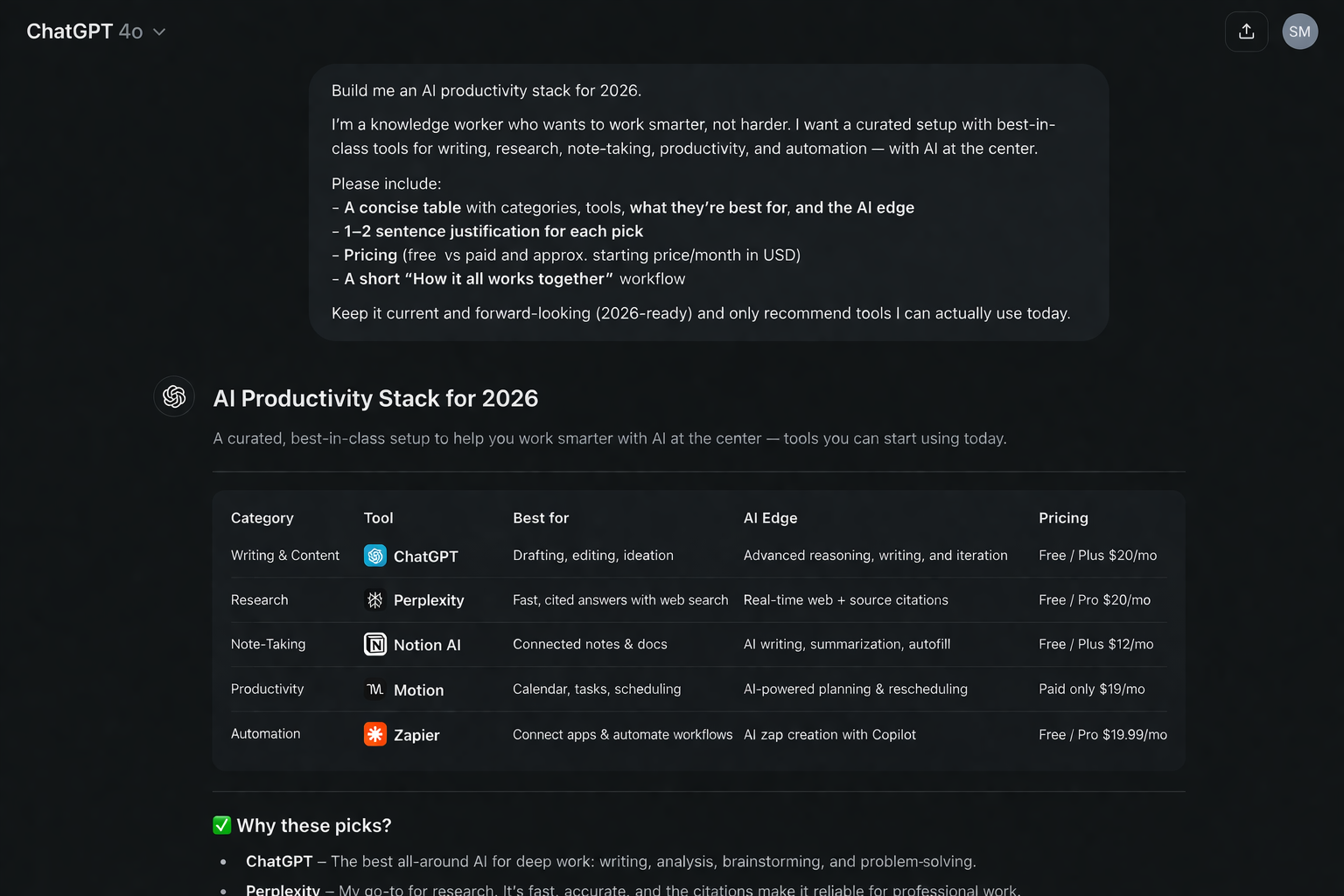
Most people use ChatGPT the same way they Google things — type a vague question, accept the first result, move on. That approach works. But it captures maybe 20% of what the tool can actually do. Here’s how to use the other 80%.
ChatGPT crossed 700 million weekly active users in early 2026. That number is staggering — it makes ChatGPT one of the most widely used software products in history. But usage and mastery are very different things. Most people who use it daily are still getting results that are generic, inconsistent, or require extensive editing to be useful.
This guide is for everyone who wants to close that gap. It covers the basics for true beginners, the most impactful intermediate techniques, and the advanced workflows that separate casual users from professionals who save hours every week.
By the end, you’ll understand why your current prompts are producing mediocre results — and exactly how to fix them.
Step 1: Getting Set Up (The Right Way)
Go to chatgpt.com. Create a free account using your email, Google, or Apple ID. The free tier gives you access to GPT-5.3 Instant — OpenAI’s current standard model — which is genuinely powerful for most tasks. You don’t need to pay to get started.
Once you’re in, do one thing before your first real conversation: set up Custom Instructions.
Custom Instructions (found in Settings → Personalization → Custom Instructions) let you tell ChatGPT who you are and how you want it to respond — permanently, across all new chats. This alone eliminates 30% of the back-and-forth that frustrates new users.
Here’s a template you can adapt and paste directly:
“I am a [your role] working in [your industry]. My typical tasks include [your most common tasks]. When responding: use concise, direct language. Avoid jargon unless technical. If my request is vague, ask up to 3 clarifying questions before answering. When there are tradeoffs, list them clearly. Always tell me if I might be missing something important, even if I didn’t ask.”
Fill in your specifics, save it, and every new conversation starts closer to what you actually want.
Step 2: The RTCF Prompt Framework
This is the single most impactful thing you can learn about using ChatGPT. The quality of output is almost entirely determined by the quality of the prompt. Vague in, vague out.
The RTCF framework gives you a reliable structure for any request:
R — Role. Tell ChatGPT who it should be. “You are a senior marketing strategist with 10 years of experience in B2B SaaS.” This isn’t just cosmetic — it genuinely changes the perspective and vocabulary of the response.
T — Task. State exactly what you want. Be specific about format, length, and purpose. “Write a 200-word LinkedIn post” is better than “write something for LinkedIn.”
C — Context. Give background the model needs but doesn’t have. Your audience, your constraints, relevant facts, what you’ve already tried. ChatGPT doesn’t know your situation — you have to brief it.
F — Format. Specify how the output should look. Bullet points, numbered list, table, prose, a template with blanks, JSON — be explicit.
Weak prompt: “Write me a cold email.”
Strong RTCF prompt: “You are an experienced B2B sales writer. Write a 150-word cold email to the Head of Operations at a mid-sized logistics company, introducing our AI-powered dispatch software. The email should acknowledge their main pain point (driver scheduling) and end with a soft ask for a 20-minute call. Use a professional but conversational tone. No jargon.”
The second prompt will produce something you can actually send. The first will produce something that sounds like every other AI cold email.
Step 3: The 5 Mistakes Every Beginner Makes — and How to Fix Them
Mistake 1: Accepting the first response. ChatGPT works best through iteration. The first response is a draft. The third or fourth version — after you’ve said “make this shorter,” “change the tone,” “be more direct in the opening” — is usually the useful one. Never close a conversation after one exchange on important work.
Mistake 2: Prompts that are too broad. “Help me with my business” gives ChatGPT nothing to work with. “Help me write a one-page executive summary of our Q1 sales results for the board meeting — focus on the gap versus target and what we’re doing about it” gives it everything it needs.
Mistake 3: Not providing context. ChatGPT doesn’t know you, your company, your audience, or your constraints. Every important piece of background you leave out is a gap the model will fill with assumptions. Brief it like you’d brief a contractor who just started today.
Mistake 4: Treating it as a source of truth. ChatGPT can produce confident-sounding statements that are wrong. This is especially true for specific statistics, recent events, and niche technical details. Use Perplexity for research that requires current, cited information. Verify anything important before using it.
Mistake 5: Asking for everything in one prompt. For complex tasks, break them down. Instead of “write me a complete business plan,” ask for the outline first, then expand each section one at a time. Step-by-step generation consistently produces higher quality results than trying to get everything in a single response.
Step 4: Five Workflows That Save Real Time
These are the use cases where ChatGPT delivers consistent, measurable time savings for professionals.
Workflow 1: Email drafting. Paste in context (“I need to decline this vendor proposal politely but firmly, here are the key points: [paste]”) and ask for a draft. Edit takes two minutes instead of twenty. Even if you rewrite 40% of it, you started from something structured rather than a blank page.
Workflow 2: Meeting preparation. Before any important meeting, paste the agenda or topic and ask: “What are the five most important questions I should ask in this meeting? What objections should I anticipate? What context would make me sound well-prepared?” The preparation time drops from thirty minutes to ten.
Workflow 3: Document summarisation. Paste any document — contract, report, research paper — and ask for a summary structured by: key findings, important caveats, and recommended actions. For legal or financial documents specifically, ask it to flag anything that “seems unusual or should be reviewed carefully.”
Workflow 4: Ideation and brainstorming. Ask for 15 ideas, not 5. Then ask it to rank them by feasibility. Then ask it to argue against its own top pick. This back-and-forth produces better thinking than trying to brainstorm alone or in a group where people self-censor.
Workflow 5: First draft of anything. Reports, proposals, performance reviews, project briefs, job descriptions — use ChatGPT to produce the first 70%. Your job becomes editing and judgment, not production. Knowledge workers who adopt this workflow consistently report 40-60 minutes saved per day.
Step 5: The Model Selector — Which Model to Use When
As of March 2026, ChatGPT runs on the GPT-5 family. Here’s the practical breakdown:
Auto (default): ChatGPT automatically routes between GPT-5.3 Instant and GPT-5.4 Thinking based on your request. This is the right choice for most everyday use.
GPT-5.3 Instant: Fast, conversational, good for writing, research, and general tasks. This is what runs by default.
GPT-5.4 Thinking: Slower and more resource-intensive, but significantly better on complex reasoning, hard math, detailed analysis, and multi-step problems. For anything genuinely difficult, switch to Thinking mode manually.
GPT-5.4 Pro: Available on the Pro plan ($200/month). For professionals doing intensive, high-stakes knowledge work where quality of reasoning is the primary constraint.
The practical rule: use Auto for most things. Switch to Thinking manually when the problem is genuinely complex and you’d rather wait 30 seconds for a better answer than get a mediocre one instantly.
Step 6: Memory and Projects — Making ChatGPT Remember You
Two features that dramatically change the experience for regular users.
Memory: ChatGPT can now remember facts about you across conversations — your role, preferences, ongoing projects, communication style. You can view and edit what it remembers at any time in Settings → Personalization → Memory. For frequent users, enabling memory means you stop repeating yourself in every new chat.
Projects: For work on a specific topic over time, create a Project. Projects let you attach files, give standing instructions, and keep all related conversations in one place. Your AI assistant working on a quarterly report can have the data, the previous quarter’s report, and your preferred format all attached — so every conversation in that project starts fully context-aware.
Both features are opt-in and manageable. If you use ChatGPT for sensitive work, review the privacy settings carefully: the API and enterprise plans don’t train on your data; free tier usage may.
Step 7: When Not to Use ChatGPT
This section matters as much as everything above.
Don’t use ChatGPT as your primary source for: current events (use Perplexity or a search engine), specific statistics without verification, medical or legal decisions, or anything where being wrong has serious consequences.
Don’t use it as a replacement for professional expertise. It can help you understand a legal concept; it cannot replace a lawyer reviewing your specific contract. It can help you understand symptoms; it cannot replace a doctor examining you.
And don’t let it substitute for your own thinking on the decisions that matter. Using AI to draft and edit is a productivity tool. Using AI to decide what you should do is outsourcing judgment that belongs to you.
The professionals who get the most from ChatGPT in 2026 use it as a high-speed thinking partner and production assistant. They stay in control of direction, strategy, and final judgment. The tool handles speed and breadth. The human handles depth and accountability.
That division of labour is where the real productivity lives.