
Data analysis used to require SQL, Python, or a data analyst. In 2026, you can describe your question in plain English, upload your spreadsheet, and get the answer. Here’s exactly how to do it — step by step, from your first upload to actionable insights.
Here is a scenario that plays out in organisations every day.
A marketing manager needs to know which campaigns drove the most qualified leads last quarter. She has the data in a spreadsheet. To get the answer herself, she’d need to build pivot tables, write COUNTIF formulas, and spend 90 minutes doing something she’d describe as “figuring out Excel.” To get it from the data team, she’d submit a request and wait three days.
In 2026, she uploads the spreadsheet to ChatGPT Plus, types “which campaigns had the highest lead-to-opportunity conversion rate last quarter, broken down by industry?” and gets the answer in forty seconds. With a follow-up chart. She didn’t learn SQL. She didn’t wait three days.
This guide teaches you exactly what she did — the full process for using AI to analyse data, step by step, with the specific prompts that produce useful results.
What AI Can (and Can’t) Do With Your Data
Before you upload anything, set realistic expectations. This prevents both frustration and overconfidence.
AI can do well: Summarising what’s in a dataset, identifying basic trends and patterns, comparing groups or time periods, calculating simple metrics (averages, percentages, counts), creating charts from your data, cleaning and formatting messy data, answering “what happened” questions from structured data, translating data into plain-language explanations, generating insights for presentations or reports.
AI struggles with: Massive datasets (millions of rows — most AI tools have context limits), highly specialised statistical analysis (regression modelling, time-series forecasting, A/B test significance), real-time data that updates constantly, and — critically — anything where a confident-sounding wrong answer would cause serious problems. AI can be confidently wrong. For decisions with significant consequences, verify AI outputs against the raw data or with a specialist.
The most impactful use for most non-technical professionals is the “what happened” category: reviewing results, comparing periods, identifying where to focus. AI is excellent at these and genuinely saves hours of manual spreadsheet work.
The Three Tools for AI Data Analysis in 2026
Choose your tool based on what you have access to and what your data looks like.
ChatGPT Plus ($20/month) — Best for most users. Upload your Excel (.xlsx) or CSV file directly to the conversation using the paperclip icon. ChatGPT can read your data, run calculations, create charts, and answer follow-up questions in the same conversation. The Data Analysis tool (formerly Code Interpreter) runs real Python code against your actual data rather than guessing — which makes it significantly more accurate than tools that just “look at” data.
Claude Pro ($20/month) — Best for large files and complex documents. Claude handles context better than most tools, meaning it can process larger files and maintain accuracy across a long conversation. It’s excellent for combining data analysis with narrative — “analyse this sales data and then write a one-page summary for the leadership team.” Upload files the same way as ChatGPT.
Microsoft Copilot in Excel (requires Microsoft 365 + Copilot Pro at $30/month total) — Best for existing Excel users. If you already live in Excel, Copilot integrates directly. Click “Copilot” in the Home tab, and you can type instructions in natural language while looking at your data. It suggests formulas, creates charts, identifies trends, and can create PivotTables from your description. No uploading needed — it works with whatever is already in your spreadsheet.
For most readers of this guide, start with ChatGPT Plus. The data analysis capability is mature, the file upload is straightforward, and at $20/month it’s the most cost-effective entry point.
Step 1: Prepare Your Data Properly
Before uploading anything, spend 5-10 minutes on data preparation. AI analysis is only as good as the data you give it, and messy data produces misleading results.
Check your column headers. Each column should have a clear, descriptive name in the first row. “Revenue Q1” is better than “Rev” or “Col_C.” The AI reads these headers to understand what the data contains.
One piece of information per cell. If you have “John Smith” in a cell that you want to analyse by first and last name separately — split it before uploading. Mixed data types in a column (some cells have numbers, some have text like “N/A”) cause calculation errors.
Consistent formats. Dates should all use the same format. Numbers shouldn’t have some with currency symbols (£1,200) and others without (1200). Inconsistency causes the AI to misread what values mean.
Remove summary rows. If your spreadsheet has a “Total” row at the bottom or merged header rows, remove them before uploading. The AI will try to include these in calculations and get wrong answers.
Make it a clean table. One header row, data underneath, no blank rows in the middle, no merged cells. Think of it as getting your spreadsheet ready for someone who’s never seen it before to make sense of.
This preparation takes 5-10 minutes and saves you from getting answers that are wrong because the data was ambiguous. Time well spent.
Step 2: Upload Your Data and Start the Conversation Right
In ChatGPT Plus, start a new conversation and click the paperclip icon (or the “+” button in the message composer) to upload your file. Select your .xlsx or .csv file.
Once uploaded, you’ll see the file attached to your message. Now your first message sets up the entire conversation, and it matters.
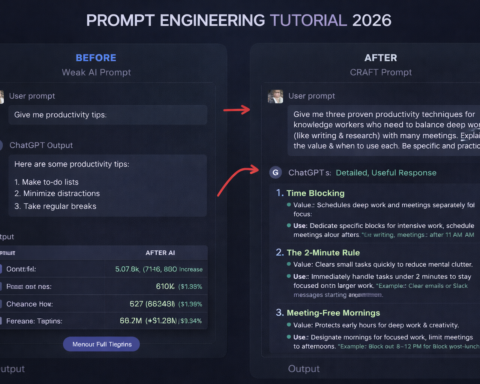
A weak first message: “What does this data show?”
A strong first message: “I’ve uploaded sales data from Q1 2026. Each row is one sale. The columns are: Date, Salesperson, Region, Product Category, Deal Value, Lead Source, Customer Industry. I want to understand which lead sources are producing the highest-value deals and whether this varies by region. Please start by giving me an overview of the dataset — how many rows, date range, and any data quality issues you notice.”
The strong version tells the AI what each row represents, what the columns mean, and what your actual question is. It also asks for a data overview first — this is the equivalent of checking your work, and it will catch any upload or formatting issues before you get deep into analysis.
The AI’s response to the overview prompt will tell you: whether it read the file correctly, whether it understood the data types, and whether there are any problems you need to fix before going further.
Step 3: Ask Your Actual Business Questions
Once you’ve confirmed the data loaded correctly, start asking your real questions. The most important skill here is translating your business question into a data question.
Business question: “Are we growing?”
Data question: “Compare total revenue by month for Q1 2026 vs Q1 2025. Calculate the percentage change for each month and the overall quarterly change. Then identify which product category drove the largest share of that change.”
Business question: “Which salespeople should I focus my coaching on?”
Data question: “Show me each salesperson’s: total deals closed, average deal value, win rate (deals won ÷ deals created), and average time from lead to close. Sort by win rate from lowest to highest. Flag anyone who has both a low win rate AND a low deal value.”
Business question: “Where are we losing customers?”
Data question: “In the customer data, show me the distribution of churned customers by: subscription age at churn, plan tier, and industry. Which combination of these three factors is most associated with early churn (within 90 days)?”
The pattern: take the business question, specify what metric you want, how you want it grouped or compared, and what output you need. Vague questions produce vague answers; specific questions produce specific answers you can act on.
Step 4: Build Charts and Visualisations
AI can generate charts directly from your data in the same conversation. When you want a visual, ask specifically.
Chart request template: “Create a [chart type] showing [what the data shows] with [specific formatting notes]. The X-axis should be [what], the Y-axis should be [what]. Label each data point / use different colours for / highlight the top 3 / etc.”
Useful chart types for common business questions:
- Bar chart: Comparing values across categories (revenue by product, leads by source)
- Line chart: Trends over time (monthly users, weekly sales)
- Scatter plot: Relationship between two variables (deal size vs. time to close)
- Pie chart: Proportion of a whole (share of revenue by region) — use sparingly, hard to read with many segments
For ChatGPT: after asking for a chart, it will run code and display the chart directly in the conversation. You can download it or ask for adjustments (“make the bars blue, add data labels, make the title larger”).
For Excel Copilot: ask directly within the spreadsheet. “Create a clustered bar chart comparing Q1 and Q2 revenue by region. Use company colours.” It will insert the chart into your sheet.
Step 5: Generate Your Summary and Takeaways
The final step translates your analysis into something you can share with colleagues or leadership. AI is excellent at this transition — taking numbers and turning them into narrative.
Summary prompt: “Based on everything we’ve analysed in this conversation, write a one-page executive summary for a leadership team that doesn’t have time to look at the data. Include: (1) the three most important findings, (2) one risk or concern the data reveals, (3) two specific recommendations based on what you found. Be specific — include the actual numbers, not vague statements about trends. Write in confident, direct prose, not bullet points.”
This prompt produces the kind of output that would previously take an analyst 2-3 hours to assemble. The AI has all the data, has done all the calculations, and can synthesise it into narrative efficiently.
One critical step before sharing: verify the specific numbers the AI cites against your original data. AI data analysis tools are significantly better than they were, but they can still make arithmetic errors or misread columns. For anything you’re presenting to leadership or using for decisions, spot-check 2-3 of the key statistics against the raw data yourself.
This verification habit is what distinguishes people who use AI data analysis well from those who eventually get burned by a wrong number in an important presentation.
A Week of Practical Applications
To make this concrete, here’s what AI data analysis looks like in practice across a typical week for a marketing manager:
Monday: Upload last week’s email campaign data. Ask: “Which subject lines had the highest open rates? Was there a pattern in what they had in common?” Takes 8 minutes. Would have taken 45 minutes manually.
Wednesday: Upload CRM data export. Ask: “Which industries have the shortest average sales cycle, and what’s the average deal size in each?” Share the output in the weekly sales meeting.
Friday: Upload website analytics export. Ask: “Which content categories drove the most time on site? Compare blog vs. case studies vs. product pages. Which traffic sources brought visitors who stayed the longest?” Use for next week’s content planning.
Each of these takes under 15 minutes with AI. The same analysis done manually in Excel pivot tables would take 45-90 minutes each, and most people would skip it entirely rather than invest that time.
The accumulation — three analyses per week that previously didn’t happen — is where the real business value lives.