Traditional automation was rigid: when X happens, do Y. AI automation is different — it adds a reasoning layer that can read, understand, classify, and decide. Here’s how to build your first one, even if you’ve never automated anything before.
Two years ago, “workflow automation” meant connecting apps. If a form was submitted, a row appeared in a spreadsheet. If a Shopify order came in, a Slack notification fired. Simple, useful, limited to structured data and predictable inputs.
In 2026, AI has changed this fundamentally. The difference is a reasoning layer. Instead of rigid if-then rules, you can now put an AI model in the middle of a workflow and ask it to read, understand, classify, draft, or decide — then act on that output automatically.
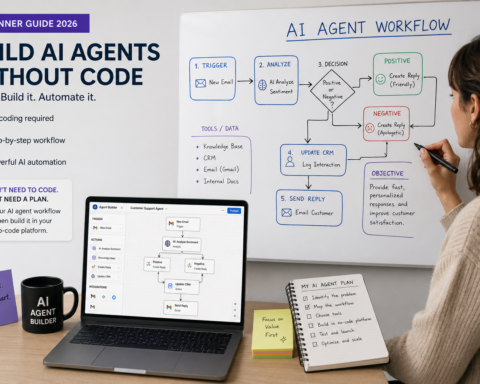
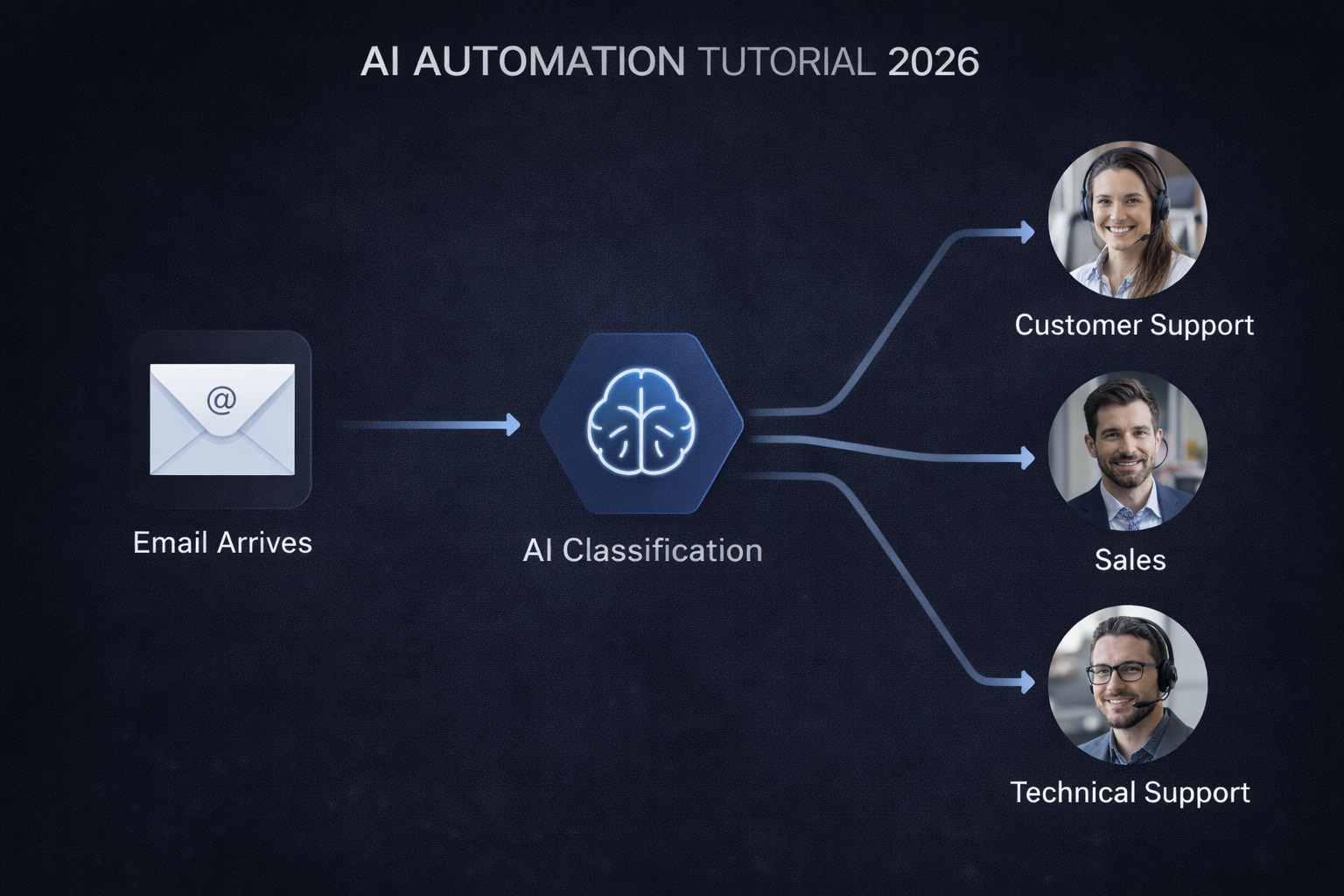
That means you can automate things that previously required human judgment. An email arrives. An AI reads it, determines it’s a support request about billing, drafts a response in your voice, and either sends it or routes it to the right person with the draft attached. No human touched it until the genuinely complex cases.
This guide walks you through that shift, from understanding how AI automation works to building your first live workflow — no prior technical knowledge required.
Understanding the Difference: Traditional vs. AI Automation
Before building anything, you need to understand what makes AI automation different from what most people call “automation.”
Traditional automation handles structured data predictably: file arrives → save to folder, form submitted → add to spreadsheet, payment received → send receipt. These work perfectly when inputs are structured and outputs are defined. They break when inputs vary.
AI automation adds a processing step: unstructured input arrives → AI reads and understands it → AI classifies, drafts, extracts, or decides → action is taken based on the AI’s output.
The practical implications: you can now automate tasks that involve natural language, judgment calls, content generation, or variable inputs. Email triage. Document summarisation. Lead qualification. Customer sentiment classification. Meeting note processing.
88% of organisations consider AI the key to successful automation, and 78% say productivity gains are the most important KPI. The organisations capturing those gains aren’t doing anything technically complex — they’re applying AI reasoning to the specific tasks where human judgment was previously the only option.
Choosing Your Automation Platform
Three platforms dominate the no-code AI automation space in 2026. The right choice depends on your technical comfort level and budget.
Zapier is the easiest starting point. It connects 7,000+ apps, has an AI Copilot that lets you describe automations in plain English and have them built for you, and integrates directly with ChatGPT, Claude, and other AI tools as action steps. The interface is familiar to anyone who’s used online software.
- Free tier: 100 tasks/month (enough to test)
- Pro: $19.99/month for 750 tasks
- Best for: Beginners, simple linear workflows, anyone who wants to move fast
Make (formerly Integromat) is more powerful and more visual. It uses a flowchart-style interface where you can see your entire automation at once. Better for multi-step, branching workflows where different conditions lead to different paths. Slightly steeper learning curve than Zapier but significantly more capable.
- Free tier: 1,000 operations/month
- Basic: From $9/month
- Best for: Users who want visual workflow design and more complex logic
n8n is open-source and self-hostable. If you run it on your own server, you pay nothing per operation — making it the most cost-effective option for high-volume workflows. It supports JavaScript inside workflows for custom logic and has the most API flexibility. Genuinely technical, but the payoff is enormous for developers or power users willing to learn.
- Free (self-hosted) or Cloud from $20/month
- Best for: Technical users, privacy-sensitive workflows, high-volume use cases
Start with Zapier. You can always migrate to more powerful platforms once you understand what you’re building.
Finding the Right Tasks to Automate
Not everything benefits from AI automation. Before building anything, identify the right candidates.
Ask yourself these four questions about any task:
Is it repetitive? Do you or someone on your team do this task multiple times per day, week, or month? If it happens rarely, automation overhead isn’t worth it.
Does it involve reading or understanding text? Email triage, document summarisation, form response classification, customer feedback categorisation — these are the sweet spot for AI automation because they’re high-volume and require language understanding.
Does it follow a pattern, even if the inputs vary? “Reply to support emails about billing” varies in specific wording but follows a pattern. The AI can learn that pattern and handle it reliably.
Would a wrong output cause serious problems, or just minor inconvenience? AI automation makes mistakes. Start with tasks where errors are low-stakes — a draft that needs human approval before sending is much safer than an action that’s irreversible.
High-quality candidates for your first AI automation: email classification and routing, draft responses to standard inquiries, meeting transcript summarisation, lead qualification from form submissions, social media monitoring and alert creation, invoice data extraction, customer feedback sentiment tagging.
Avoid for now: anything with legal, financial, or medical consequences; anything requiring access to sensitive personal data; any process where a confident-but-wrong AI output would be worse than no automation.
Building Your First AI Workflow: Email Classification and Draft Response
Let’s build something real. This workflow is the most universally useful starting point for most professionals and small businesses: automatic email classification with AI-drafted responses.
What it does: When a new email arrives in Gmail, an AI reads it, determines the category (sales inquiry, support request, general question, spam), drafts an appropriate response based on your templates, and either sends it automatically or routes it to a draft folder for your review.
Tools needed: Zapier (free tier or Pro) + OpenAI API key or Claude API key (pay-per-use, very cheap for most volumes).
Step 1: Set up your Zapier account. Go to zapier.com, create a free account. Connect your Gmail account when prompted.
Step 2: Create a new Zap. Click “Create Zap.” Set your trigger: “Gmail → New Email.” Configure it to watch your inbox (or a specific label if you want to be selective).
Step 3: Add an AI step. After the trigger, add an action: search for “ChatGPT” or “Claude” in the Zapier action library. Select “Send Message” (ChatGPT) or “Create Message” (Claude).
Step 4: Write your classification prompt. In the message field, build a prompt that includes the email content and asks for classification:
“Read the following email and classify it as one of: [sales inquiry, support request, billing question, general question, spam/irrelevant].
Email subject: [insert Gmail trigger field: Subject] Email body: [insert Gmail trigger field: Body Plain]
Respond with ONLY the category name, nothing else.”
Step 5: Add conditional routing. Based on the AI’s output, use Zapier’s “Filter” or “Paths” feature to route differently: sales inquiries go to your CRM, support requests get a specific draft template, billing questions get forwarded to your accountant.
Step 6: Generate the draft. For each path, add another AI step that generates an appropriate draft response. The prompt:
“You are [your name], [your role]. Write a brief, professional reply to this email. Use the tone of someone who is helpful, direct, and values the reader’s time.
Email: [insert email body] Category: [sales inquiry]
Draft a reply that [acknowledges their interest / addresses their support issue / etc.]. Keep it under 150 words. Do not start with ‘I hope this email finds you well.’ Sign off with ‘Best, [your name].'”
Step 7: Route the draft. Instead of auto-sending initially, use “Gmail → Create Draft” as the final action. The draft appears in your Gmail drafts folder, pre-written, ready for your review and one-click send.
Test thoroughly. Send yourself 5-10 test emails across all categories before taking this live. Review what the AI generates. Adjust the prompts where the outputs miss.
After two weeks of reviewing drafts, you’ll know which categories the AI handles reliably enough to auto-send. Move those to automatic; keep the complex or sensitive ones in draft mode.
The Three Rules of AI Automation That Save You From Disasters
The people who’ve had bad experiences with AI automation almost always violated one of these.
Rule 1: Never automate before understanding. Automate processes you already understand well. If you don’t know exactly what “good” looks like for a task, the AI won’t either. Define success criteria — including what a wrong output looks like — before you build.
Rule 2: Route outputs to drafts before making them automatic. For the first 2-4 weeks of any new AI automation, route outputs to draft mode rather than taking automatic action. Review 20-30 outputs to confirm the AI is behaving as expected before removing the human checkpoint. This is not optional — it’s what separates successful implementations from disasters.
Rule 3: Build simple before complex. Start with one trigger and 2-3 actions. Complex multi-step workflows are harder to debug when things go wrong, and things will go wrong. Once the simple version is running reliably for 30 days, add complexity.
The Automations That Deliver the Fastest ROI
Once you’ve built your first workflow and understand the pattern, here are the next highest-value automations most professionals find immediately useful.
Meeting transcript → action items: Connect Otter.ai or Fireflies to Claude via Zapier. When a meeting transcript is ready, send it to Claude with the prompt: “Extract all action items from this transcript, formatted as: owner, task, deadline (if mentioned). Identify any decisions made. List any open questions that need follow-up.” Route to Notion or email to relevant attendees.
Lead form → CRM entry + personalised follow-up: When someone fills your contact form, use AI to qualify the lead, enrich the record, and draft a personalised first response based on what they said — not a template that sounds like a template.
Customer feedback → sentiment tagging + weekly summary: Connect your feedback form to AI that tags each response as positive, neutral, or negative with a topic category. Weekly, trigger an AI that summarises the week’s feedback into 3-5 key themes. Route to your product Slack channel automatically.
Invoice data extraction: When an invoice PDF arrives in email, use AI to extract vendor name, amount, due date, and line items, and populate a spreadsheet automatically. Saves 5-15 minutes per invoice in manual data entry.
Each of these follows the same pattern: trigger → AI reasoning step → action. Once you’ve built one, the others take less time. The skill compounds.